


How to Reset A Chevy Trax Touchscreen
The Chevrolet Trax comes with a ton of interior features, which is why it’s one of the more popular crossover SUVs on the market. One of those features is the touch-screen infotainment display located in the center of the dashboard. Through this infotainment display, drivers can perform tasks such as getting turn-by-turn navigation instructions or loading their favorite music. It’s a great convenience that many drivers come to rely on, which is why it’s unfortunate when this device stops working. If you’re experiencing Chevrolet Trax touch-screen problems, resetting it may solve the problem.
Signs Your Chevrolet Trax Touch Screen Isn’t Working
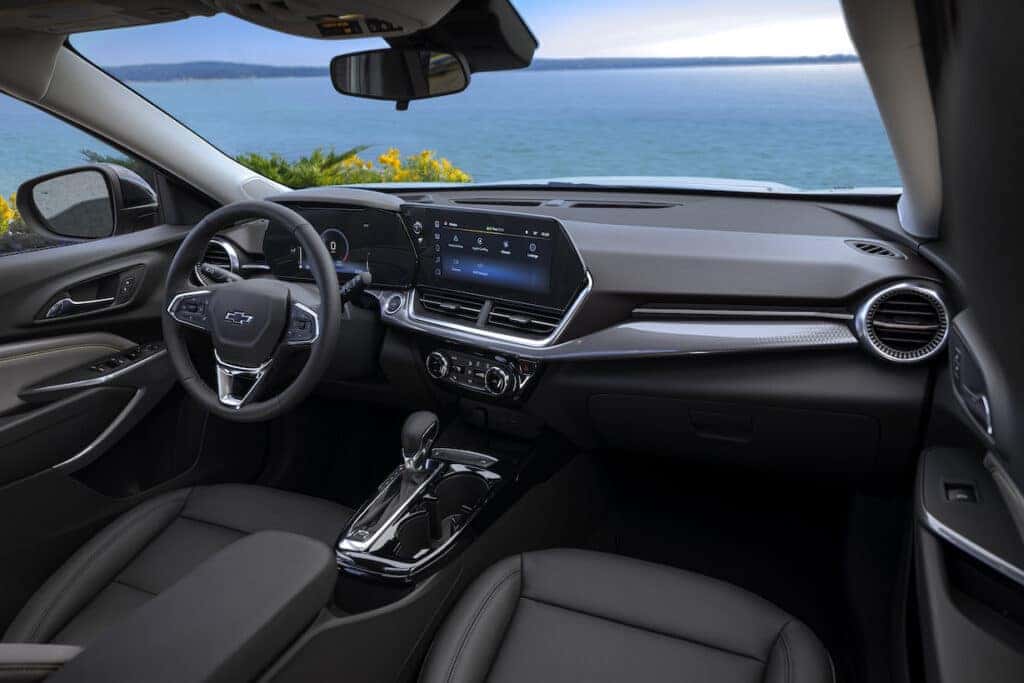
There are a few common signs that your Chevrolet Trax touch screen isn’t working as it’s supposed to. One issue you might be having is if the screen comes on but doesn’t respond to your touch. If you’re attempting to navigate through the different menus and the screen is either unresponsive or doesn’t respond normally, this is likely a sign that you may need to reboot the system.
Another common problem is when the screen remains black. If you’ve started your vehicle and the infotainment system doesn’t boot up as it normally does, rebooting the system may help resolve the issue. Finally, if your infotainment system isn’t working correctly, you may have difficulties connecting it to your smartphone. If you’ve attempted to connect your phone either with a cable or wirelessly depending on your vehicle’s capabilities and the system doesn’t recognize your phone, a reboot may help.
What To Try Before Resetting Your Trax Infotainment System
Before you attempt to reboot the infotainment system, there are a few other simple fixes you can try that may resolve your issue. For starters, if the touch screen is unresponsive to your touch, you can try cleaning off the screen. Grab some wet wipes or a damp cloth, then wipe down the screen. Don’t use anything abrasive, as it may damage the screen. Once you’ve cleaned the touch screen, see if it responds better when you touch it.
If you’re having trouble connecting to your smartphone, try restarting that device. Turn your phone off and on, then see if it connects to your Chevrolet Trax. If you’re using a wired connection, you may also want to clean out the connection ports and try a different connection cable to rule out that as the source of your problems. For wireless connections, make sure the correct settings are enabled on your phone and that you’ve paired the device to the infotainment system correctly.
Lastly, you should check to see if there are any available software updates. Chevrolet will periodically release updates to the infotainment system software, which fix known bugs or provide performance improvements. Similarly, you may also need to update your smartphone, as sometimes the Trax infotainment system works best when connecting with the latest version of your phone’s operating system. Check to make sure everything is up to date before you attempt to reboot your infotainment system because a reboot won’t resolve this underlying issue.
How To Reset Trax Touch Screen
If the above fixes don’t resolve your issue, then a reset of the Trax touch screen may do the trick. The process for resetting the infotainment system will depend on the model year of your Chevrolet Trax and the system that you have. Below are the various instructions for resetting your touch screen based on your vehicle specifics:
- 2014 to 2016 Chevrolet with MyLink/Intellilink: Simultaneously press the Home and Fast Forward buttons and hold them down for at least 10 seconds.
- 2017 to 2019 Chevrolet with GM infotainment: Press the OnStar call button, then end the call.
- 2019 to 2023 with GM infotainment (without built-in Google): Turn the vehicle off, then back on.
- 2022 onward with GM infotainment (with built-in Google): With the vehicle in Park, press the phone hangup button located on the steering wheel and hold it for at least 10 seconds.
The above instructions should work not only for your Chevrolet Trax but also for any other Chevrolet, Buick, GMC, or Cadillac vehicles because they all use the same infotainment systems. If you’re unsure of which method to try, you can locate information about your Trax’s infotainment system in the owners manual.
What To Do If Resetting Doesn’t Work
If you followed the instructions above and your infotainment system either didn’t reset or a reset didn’t resolve your issue, there are a few other things you can do. First, you can try one of the other listed methods to see if it resets your touch screen. You may have tried the wrong method for your vehicle, and selecting a different one may reset the infotainment system.
If you’re still experiencing issues after resetting your infotainment system, you may have a hardware issue instead of a software one. The internal components of your touch screen may have become damaged or broken down over time. When this happens, a simple reset of the system likely won’t resolve your issue.
Instead, you’ll want to bring your vehicle to a trusted Chevrolet service center. Trained service technicians can diagnose the cause of your touch-screen issues and then implement the correct fix. Replacing or repairing the infotainment system is complicated work and not something you’ll likely want to attempt yourself. Instead, leave it to the professionals and have your infotainment system working properly again in no time.
Visit #1 Cochran Chevrolet Youngstown for More Assistance
Still having some trouble with your Chevrolet Trax’s touch screen? If you’re in the Youngstown, Ohio, area, bring your Trax to #1 Cochran Chevrolet Youngstown. The trained technicians at our service center can quickly diagnose the problem for you and then implement the right fix to get your touch screen working again. You can also explore the latest Chevrolet Trax models for sale if you’re looking to upgrade to something new. To get started, you can schedule an appointment with our service center online, or you can contact us at any time with questions for our sales team.
0 comment(s) so far on How to Reset A Chevy Trax Touchscreen